Dial

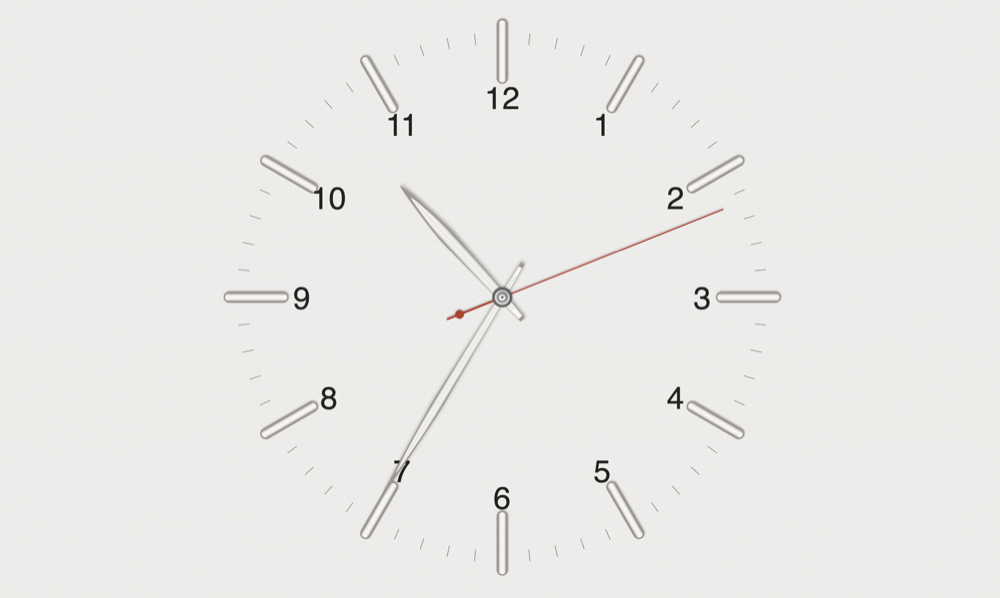
I’m a sucker for Bauhaus design. Clean geometry, honest materials, no ornament for its own sake. So when I came across bauhausclock.com, a paid macOS screensaver by Atilla built around a Junghans Max Bill watch face, I couldn’t stop looking at it.
I didn’t buy it. I decided to build my own version instead, partly because I liked the challenge of reverse engineering the design from scratch, and partly because I’d never really written Swift before and wanted an honest excuse to learn it properly.
a challenge, not a clone
Screensavers are a strange, small corner of macOS development that most modern app tutorials skip entirely. There’s no SwiftUI screensaver API, it’s still ScreenSaver.framework from the Objective-C era, rendered frame by frame with raw Core Graphics.
That was exactly the point. No shortcuts, no borrowed UI kit, just CGContext, bezier paths, gradients, and CoreText, learning Swift by making it draw a convincing metal watch hand instead of a to do list.
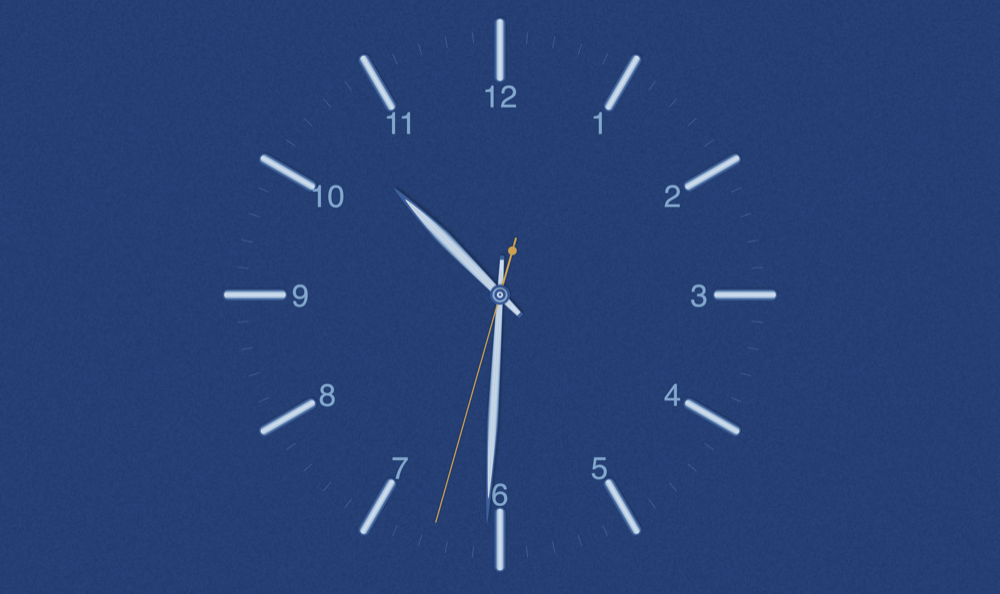
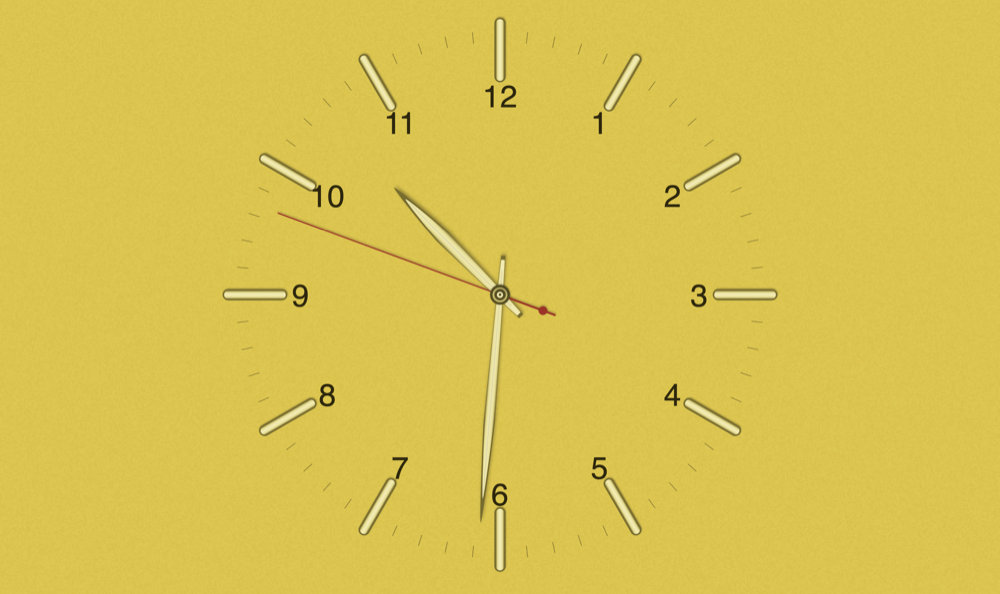
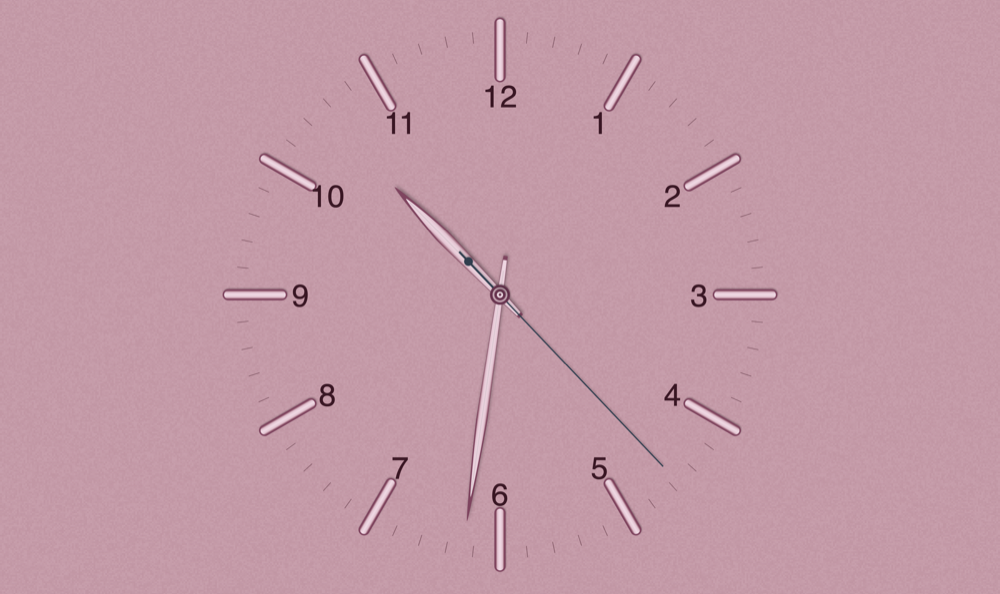
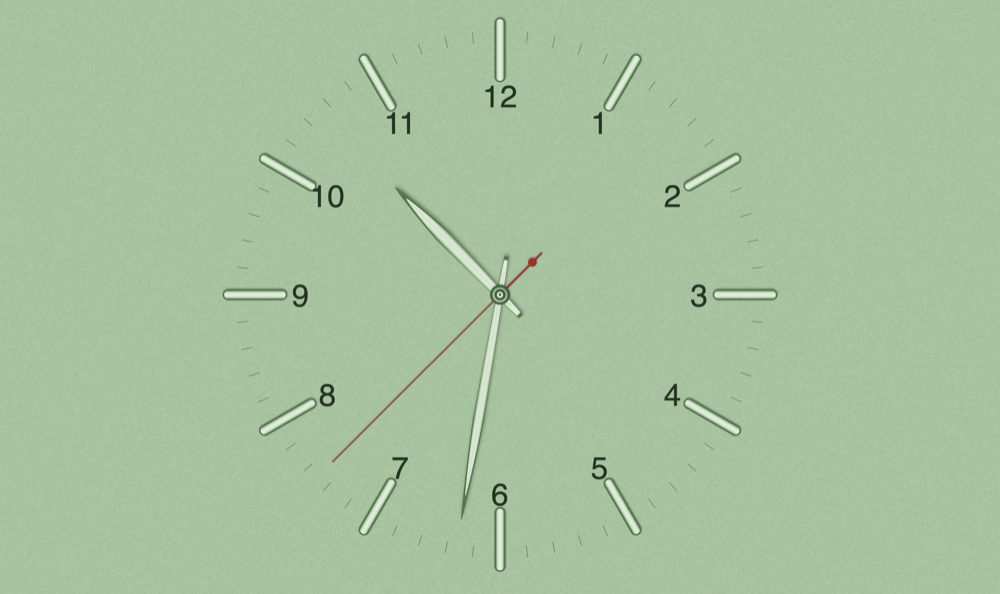
what it does
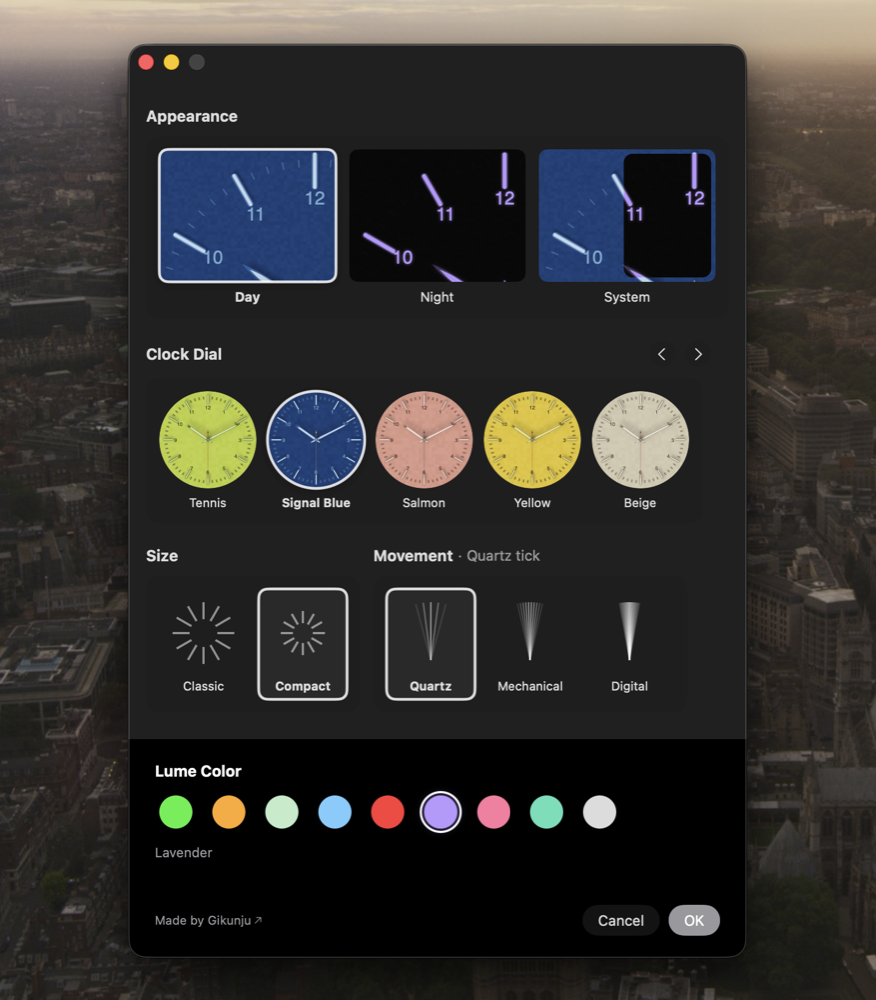
- 16 dial palettes, from Noir to Sky Blue to Tennis
- 3 movement types: Quartz tick, Mechanical sweep, and a fully smooth Digital option
- 9 night mode lume colors with a soft gaussian glow instead of a drop shadow
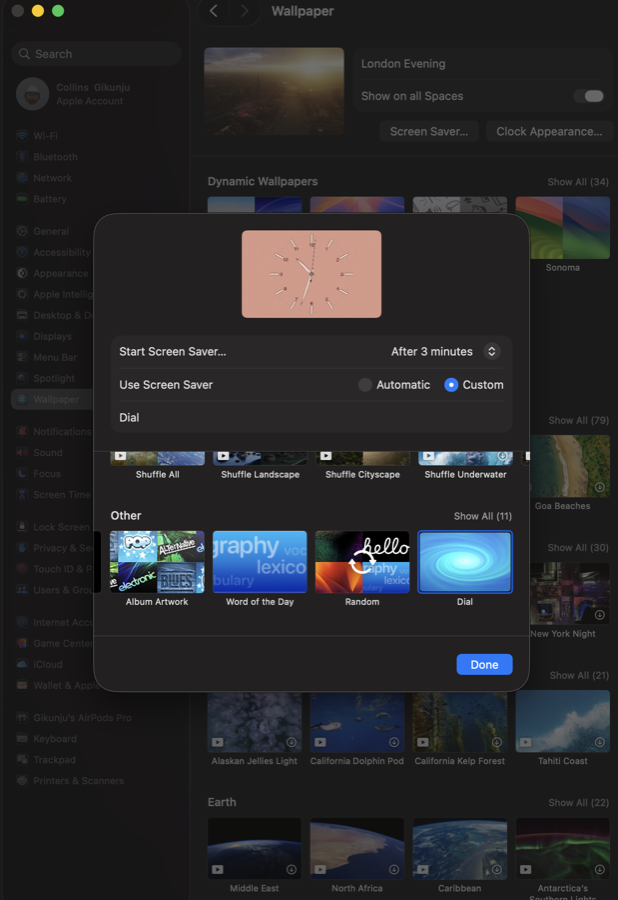
- A companion settings app, so the dial you configure is the exact one that shows up when the screen locks
- Classic and Compact sizing, burn in drift protection, and an optional second hand
- No third party dependencies. Just Swift, AppKit, CoreText, and CoreGraphics
the stack
- Swift 5, ScreenSaver.framework, AppKit, CoreText, CoreGraphics
- A SwiftUI companion app for picking dials, movements, and lume colors
- Deterministic LCG grain noise, blended over the whole face for texture
Nothing here comes from a third party package. Rendering, settings storage, even the grain texture, all written by hand. That was the whole point of picking this project.
View on GitHub →
the part that actually taught me something
The companion app writing settings and the screensaver reading them sounds trivial. UserDefaults, done. Except recent macOS runs legacy .saver plugins inside a sandboxed legacyScreenSaver.appex extension with its own private preferences container. My companion app’s writes were landing in the normal shared location, while the sandboxed screensaver process was reading from a completely different, isolated one.
The fix ended up being two small, deliberate steps done on every save. Mirror the settings file into that sandboxed container directly, then nudge the system’s preferences cache to actually notice the change. Not glamorous, but it’s the difference between a screensaver that looks configured and one that actually is.
then the fans wouldn’t stop
A few weeks into running this as my actual daily screensaver, my MacBook started running hot with the lid closed. Activity Monitor showed legacyScreenSaver, the sandboxed process macOS uses to run old style .saver plugins, pegged at 128% CPU. Not spiking, pegged, for 41 minutes straight while the machine just sat there.
My grain texture function was repainting around 165,000 individual pixel sized rects from scratch on every frame, at 60fps, forever, even though it uses a fixed seed and produces the exact same output every single time. I was recomputing an identical image ten million times a second and calling it texture.
The view was also redrawing at a flat 60fps no matter the movement type, even though Mechanical only steps 8 times a second. Most of those frames were pixel for pixel identical, painted for nothing. Caching the grain as one image and matching the redraw rate to the actual movement dropped CPU on the same build from about 115% down to around 9%.
what i’d take from it
Picking something you’d normally just pay $19 for and building it yourself instead is a genuinely good way to learn a new language. You’re not following a tutorial’s happy path, you’re reverse engineering hand geometry, gradient stops, and grain textures from a marketing screenshot. That forces you to actually understand the rendering pipeline instead of copy pasting it.
It also reminded me that the unglamorous plumbing, like a settings sync bug buried in macOS sandboxing, is usually where the real learning happens, not in the parts you show off first.
There’s no funnel for a screensaver, so I set my own bar: could I run it as my actual daily screensaver without wanting to fix something every time I glanced at it. The settings sync bug is exactly the kind of thing that would have failed that test quietly, working in the editor, drifting out of sync on the actual lock screen, until I happened to notice.